Two-factor authentication
For security reasons, students must now use two-factor authentication to log on to systems like:
- Brightspace
- Mitstudie.au.dk
- Microsoft Office 365
- MoveOn
- Panopto
We recommend that you use Microsofts app, Microsoft Authenticator, for the purpose and that you install it on your mobile phone. If you use VPN connection through remote.au.dk you have already installed two-factor authentication and you do not need to do anything further.
Read here how to install and use two-factor authentication.
Guide on how to set up two-factor authentication
Guide on how to set up two-factor authentication
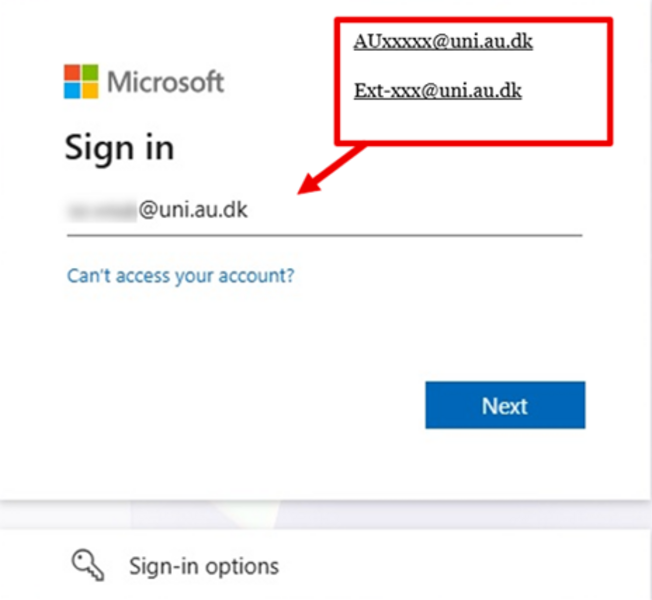
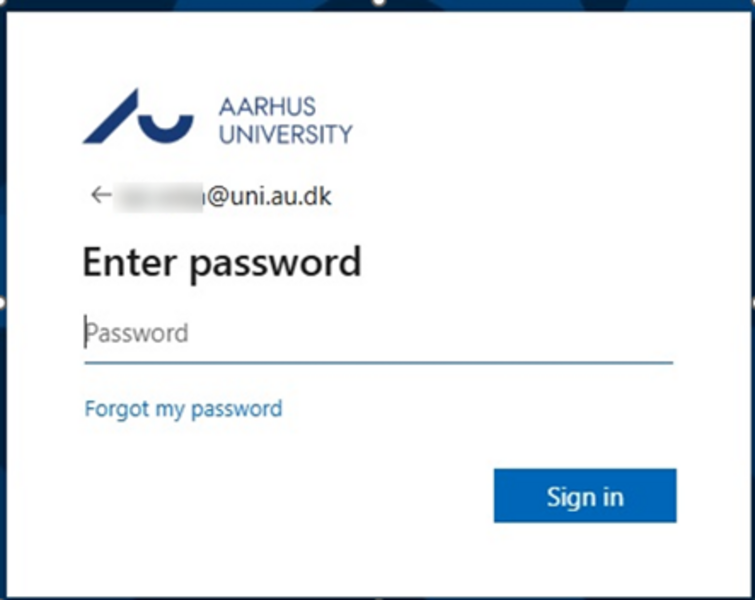

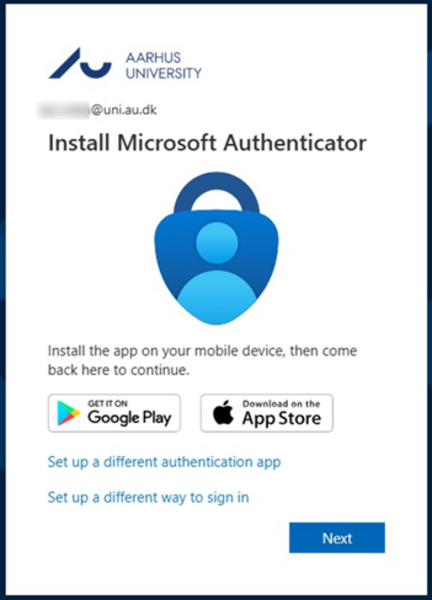
5. Download and install "Microsoft Authenticator" app on your mobile. You will find the app in app store or Google Play.
Microsoft authenticator icon

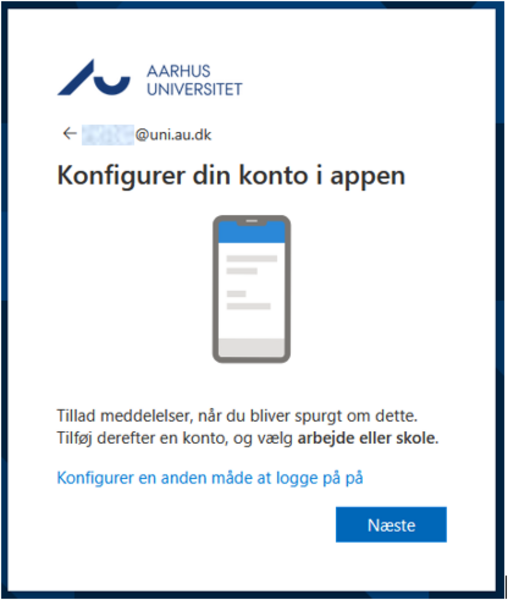
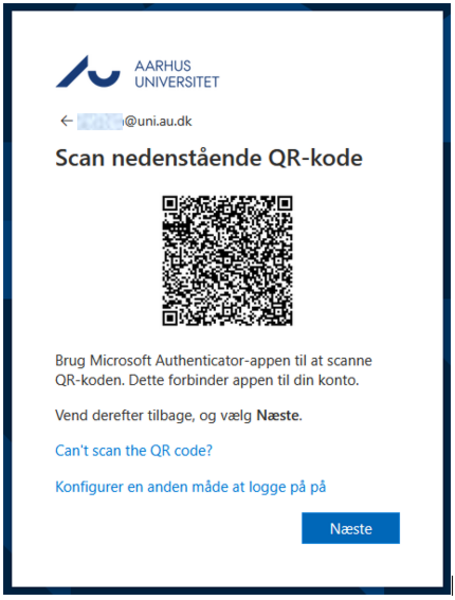
9. Open the Microsoft Authenticator app (on your mobile) and click next on your mobile
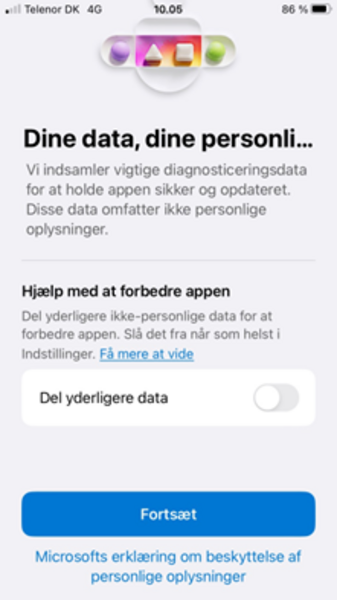
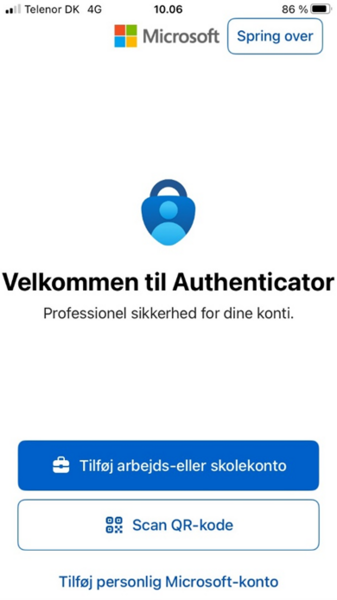
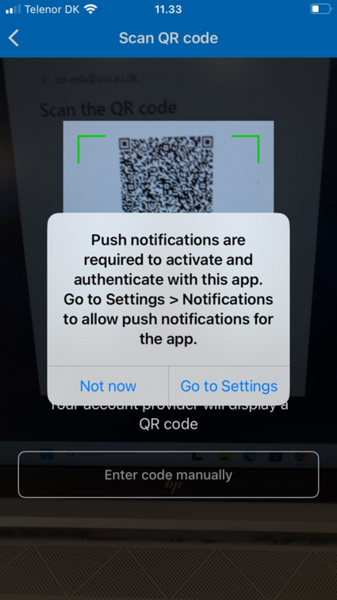
This is how it looks on your mobile:
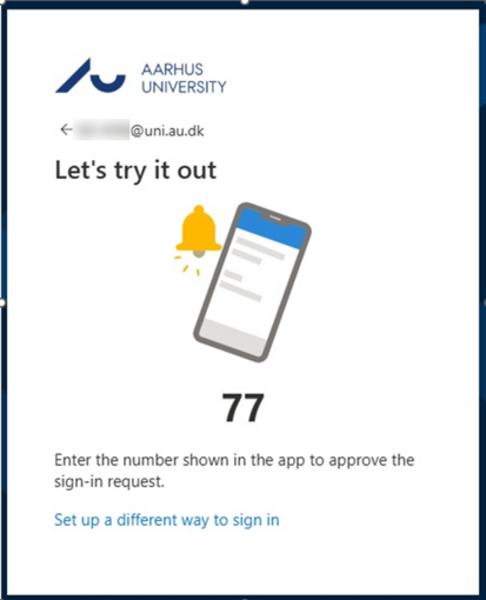
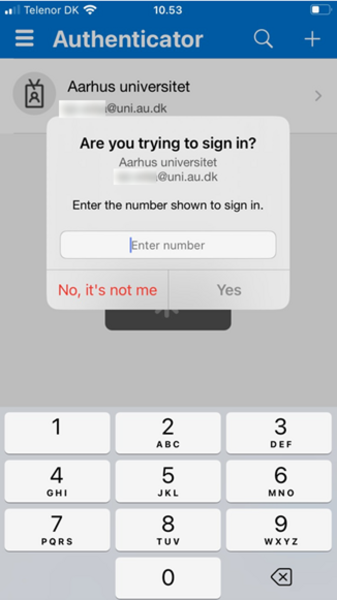
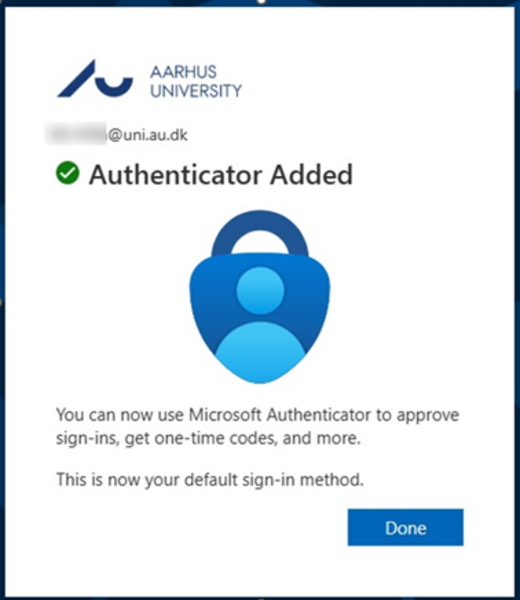
How two-step authentication works with Mitstudie.au.dk and Brightspace
How two-step authentication works with Mitstudie.au.dk and Brightspace
When you log in to your mail, e.g. Mitstudie.au.dk or Brightspace, and enter your username and password, you will subsequently be asked for two-step authentication.
In your browser you will see this image. You must now use your mobile for the next step.

On your mobile you will see a drop-down menu on which you can select ‘Approve’ or ‘Deny’. Select ‘Approve’.
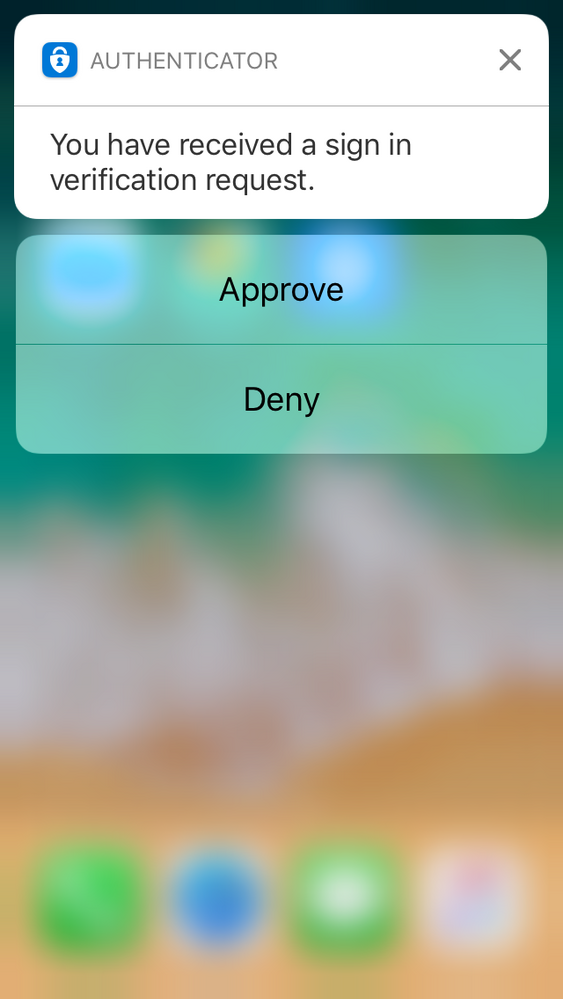
If you do not manage to press ‘Approve’ on the drop-down menu you can always open the Microsoft Authenticator app and press ‘Approve’ there. When you’ve pressed ‘Approve’ on the app you will be logged in.

Remember that you must enter your username in the format au[auid]@uni.au.dk, e.g. [email protected].
What if I don’t have any mobile coverage?
What if I don’t have any mobile coverage?
If you are out of range you cannot carry out two-step authentication in the app. If you see a dialog like the one below you can temporarily change your authentication method by clicking "Sign in another way". If you are trying to log on to a system that does not give you the option of temporarily change method, you will need to change your standard method as described here.

Click on ‘Use a verification code from my mobile app’.

Enter the code and press ‘Verify’.

You will find your six-digit verification code by opening the ‘Microsoft Authenticator’ app on your mobile.
Mobile app or text messages? Change settings
Mobile app or text messages? Change settings
Two-step authentication can be set up so you will be contacted in the following ways:
- Information via app (Mobile app)
- Text message
- Call
- Authentication code from app
If you have a smartphone we recommend ‘Information via app’/‘Mobile app’.
If you want to change your settings you can do so here.
What if I don’t have a mobile?
What if I don’t have a mobile?
If you don’t have a mobile (you may use your private phone if you wish to) you can instead choose to use a landline.
How to setup two-step authentication if you have a landline
When you receive the email stating that you can set up two-step authentication you must go to https://portal.office.com to do so.
If asked to enter your username you must always use the format au[auid]@uni.au.dk, e.g. [email protected].
If you see the following dialogue box in Outlook you can instead start setup of two-step authentication here by clicking on ‘OK’.

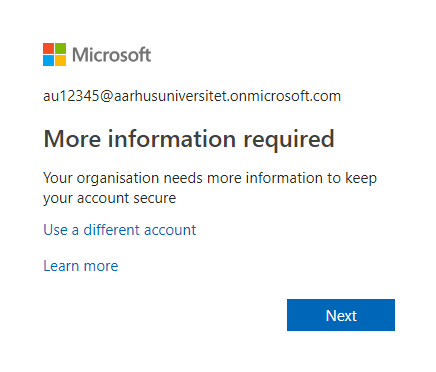
When you log in to https://portal.office.com, you will see the following message. Click on ‘Next’ to continue with setup.
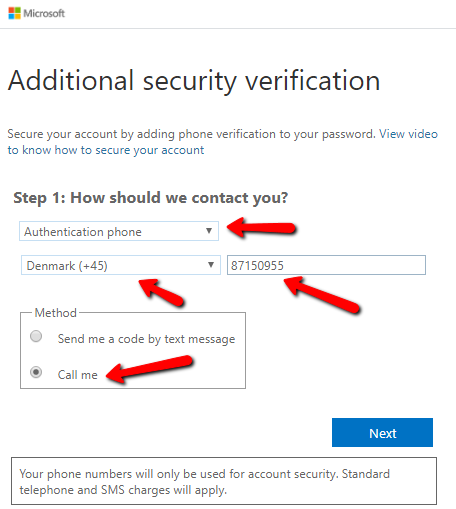
Select ‘Phone number (approval)’. Select ‘Denmark (+ 45)’ as country code and enter your landline number. Select ‘Call me’ under Method, and conclude with ‘Next’.
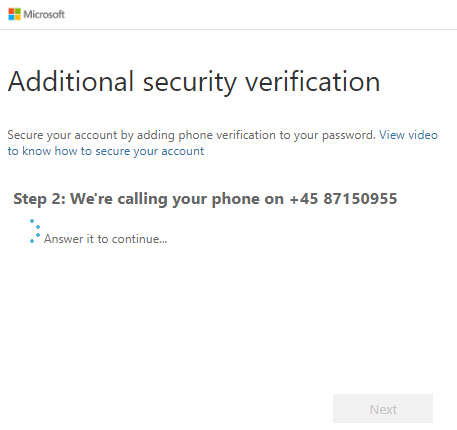
A robot will now call your landline and ask you to press # to confirm that it is you who are attempting to log in.
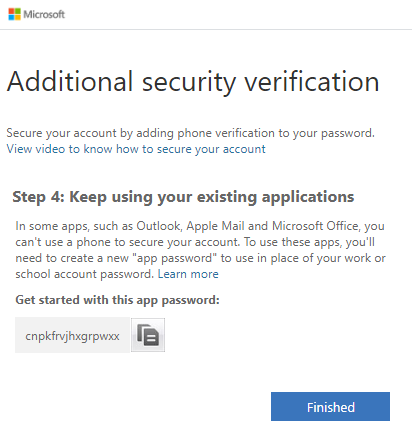
Click on ‘Finished’.
Lost, stolen or new mobile
Lost, stolen or new mobile
Stolen or lost mobile
If your phone has been stolen or you have lost it in some other way, you will have to get your two-step authentication set up again. You must contact Support for help with this. Support can also help get the content deleted.
New mobile
If you’ve got a new mobile you must transfer your two-step authentication to it.
Do this by clicking "configure authenticator app" on the following link. For this setup you need your old mobile, so wait resetting and deleting the app. You find guidance for the setup here